iPod Shop USA
Home
Shop
Repair
Info
Support
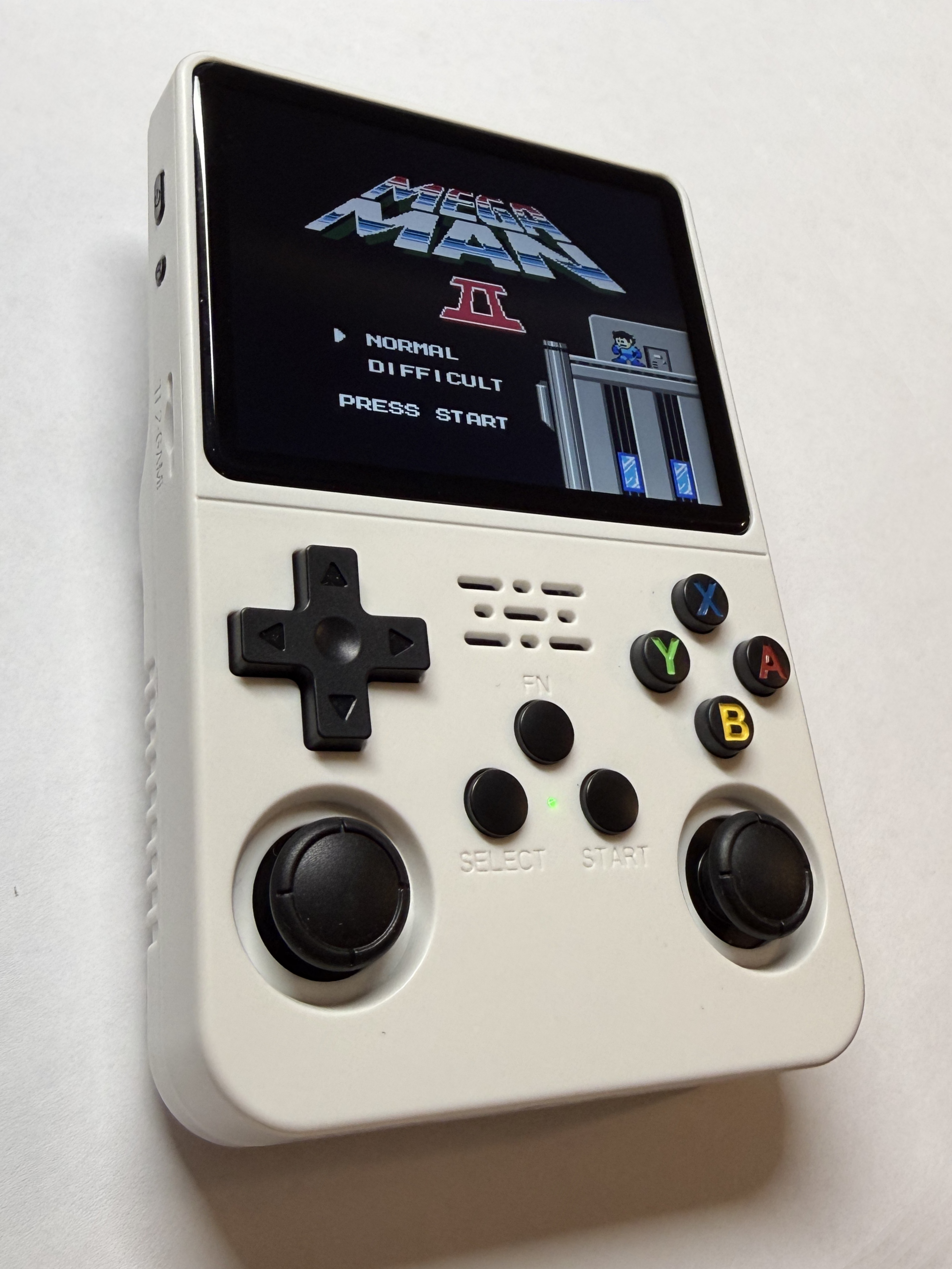
R36S Update Guide
Use this guide to update your handheld to the most recent version of dArk OS.
Back to Update Guides
Need Help?
What You Need
Rufus USB Tools
7-Zip
~35GB of storage
MicroSD card reader (USB)
A Windows PC, Mac, or Linux computer
10–30 minutes of time
Step 1: Back Up Your SD Card
Power off the R36S completely.
Remove the MicroSD card and insert it into your computer.
Create a folder named
R36S Backup
on your computer.
Copy all files from the BOOT folder on the SD card into that folder.
Create a folder named
EASYROM Backup
on your computer.
Copy all files from the EASYROM folder on the SD card into that folder.
Step 2: Get the Update Files
Download dArkOS_G350_trixie_02012026.img.7z.001
Download dArkOS_G350_trixie_02012026.img.7z.002
Download Update Files
Step 3: Prepare the .img File
Move both files to their own folder.
Right-click the .001 file and select extract with 7-Zip. (It will automatically combine with .002)
Download 7-Zip
Step 4: Format SD Card
Open Disk Managment.
Select SD card.
Select "Format drive".
Step 5: Install .img File
Open Rufus.
Select the SD card and dArkOS_RG351MP_trixie_02012026.img as the image file
Click ready and yes to all the warnings
Download Rufus
Step 6: Change .dtb file
Open the boot Partition on the SD card.
Replace rk3326-rg351mp-linux.dtb with the one from your backup file.
Step 7: Create EASYROM partition
Eject SD card from Computer and insert into handheld.
Turn Handheld on and wait for precess to complete.
Step 8: Populate EASYROM folder
Return the SD card to your computer.
Copy files from the EASYROM Backup folder on your compter to the EASYROM partition on the SD card.
Reinsert the SD card into your handheld and test a few games.
Troubleshooting
Device won’t boot:
Re-seat the SD card and try again.
Black screen:
Restore from your backup or re-flash the SD image.
Corrupted SD card:
Try a different SD card (quality brand recommended).